
How to Use Mission Control to Direct Your OpenClaw Agent
Every task in OpenAssist Mission Control moves through queue, processing and completed, diverting to confirmation whenever the agent needs your approval.
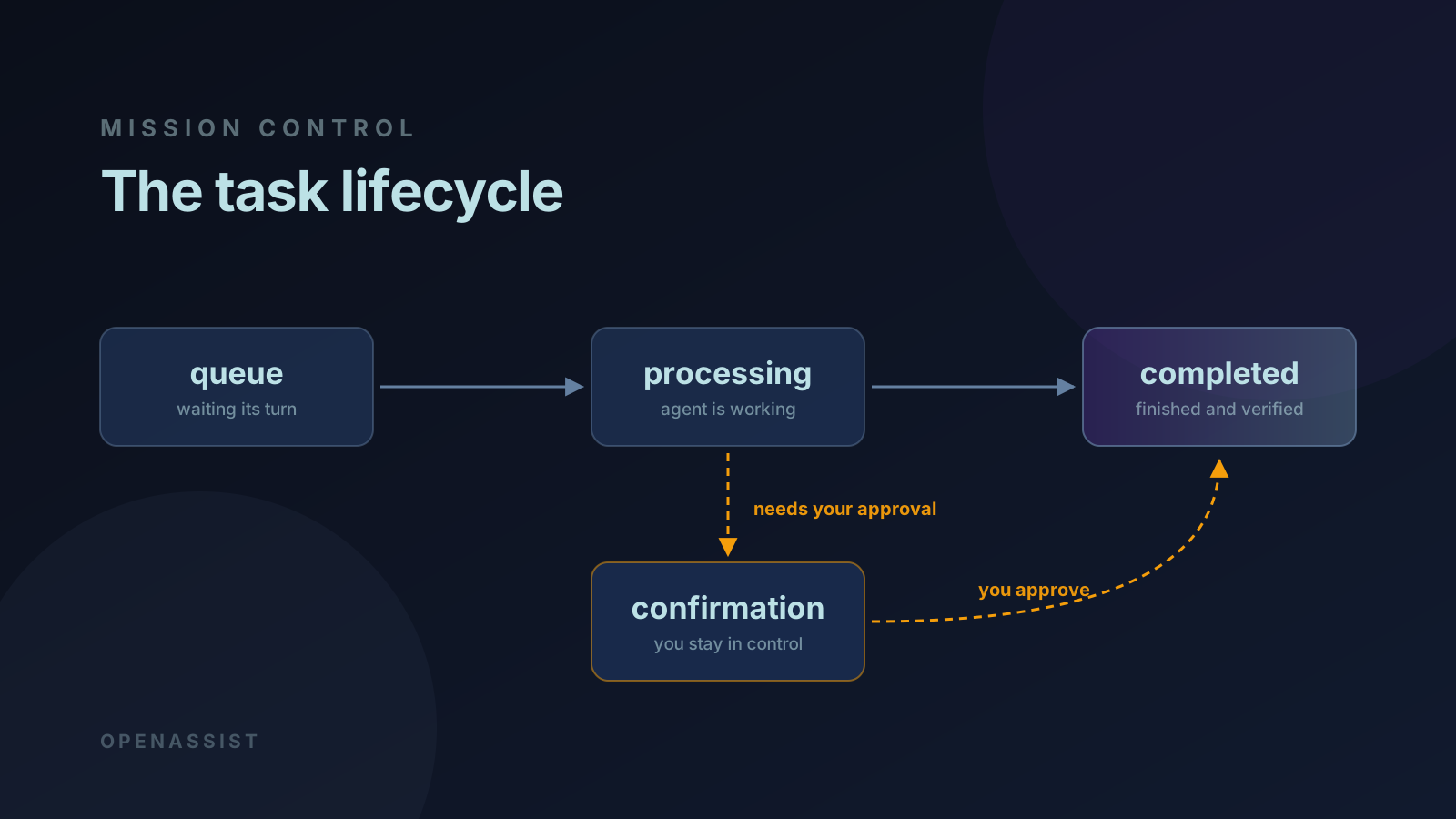
Every request you make in OpenAssist becomes a task on the Mission Control board, and every task moves through the same four states. Knowing those states is most of what you need to read the board, because the state a card sits in tells you exactly who is holding the work — you, or the agent.
What are the task states in Mission Control?
There are four: queue, processing, confirmation
and completed. Most work runs straight through three of them —
queue, then processing, then completed. The fourth exists for the case where the agent
has finished but wants your sign-off before closing the card.
- queue — the starting state for every new task. Work waits here until an OpenClaw agent is free to pick it up.
- processing — an agent has claimed the task and is working. It may post progress updates, attach files, or spawn child tasks while in this state.
- confirmation — the agent has finished but needs your approval, clarification or feedback before closing. This is the state that keeps final decisions with you.
- completed — work is finished and verified, either automatically or after your review.
A card sitting in confirmation is waiting on you, not on the agent.
It is the one state where the board is blocked until a human acts.
How does an OpenClaw agent create a task?
The agent converts each request into a structured task using the mc
command, so nothing is lost in conversation and everything lands on the board:
mc create-task "Title" "Description" [priority] [type] [flags]The title summarises the work; the description carries the full context of what you asked for. Every task also gets a priority and a type.
Priorities
Priority decides execution order. OpenClaw agents may raise or lower it as circumstances change — for instance, as a deadline approaches.
- urgent — time-sensitive or blocking work needing immediate action
- high — important, and should typically be finished the same day
- medium — the default for most work
- low — backlog or optional work
Task types
Typing a task drives filtering, reporting and automation routing. The available types
are research, writing, analysis,
decision, monitoring, subagent,
email and custom.
How does an agent work through a task?
The agent follows the same four-step loop every time: claim, work, report, close. It selects an available task, moves it into processing, posts updates as it goes, and then either completes it or sends it to you for review.
mc list-tasks queue
mc update-task <id> processing
mc add-comment <id> "Update..."
mc complete-task <id> "Summary of what was done"
The progress comments matter more than they look. They are what let you monitor a long -running task without interrupting the agent to ask for a status report.
Where do comments and replies appear?
On the task card itself, never in chat. When you comment on a task, the OpenClaw agent replies on that same card, which keeps every discussion attached to the work it refers to rather than scattered through a conversation log.
The agent checks for unread comments on every system heartbeat, so you do not need to prompt it to notice a reply.
How does complex work get broken down?
Through child tasks linked to a parent. Work that involves several distinct stages — research, then design, then implementation — becomes multiple cards rather than one opaque long-running task:
mc create-task "Research: topic" "Details" medium research --parent=<id>This is what lets you see how a large request was decomposed, and which part of it is currently moving.
How are sub-agents and models attributed?
Every action records which sub-agent performed it and which AI model was used, so the board doubles as an audit trail:
mc create-task "Task" "Desc" high research --agent=orion:Orion
mc update-task <id> processing --agent=codex:Codex
mc complete-task <id> "Done" --agent=codex:Codex
Tasks are also tagged with the model that did the work — for example
--tags=model:haiku or --tags=model:deepseek-r1. Because
OpenAssist bills by token consumption, those tags are what make model utilisation,
performance patterns and operational cost visible per task rather than only in
aggregate.
Can the agent attach screenshots?
Yes — images attach to task comments and render inline on the card, which is the quickest way to review visual output:
mc add-comment <id> "Current state" --image=/tmp/screenshot.pngThe limits are five images per comment and 5 MB each, and the file has to exist before the comment is sent.
What happens when a task gets blocked?
The agent moves on rather than stalling. If something blocks progress for more than ten minutes, it posts a comment explaining the blocker, picks up another available task, and returns to the blocked one once the obstacle clears.
A blocked task should never stop the board. It should only stop itself.
What does the agent do on each heartbeat?
On every heartbeat the agent runs the same maintenance pass: check for new comments, respond to pending feedback, review the queue, update in-progress work, and close anything finished. That cycle is why tasks keep moving without you having to prompt the agent, and why a comment left overnight has a reply waiting in the morning.
Run your own agent on Mission Control
Deploy a dedicated OpenClaw instance and put your first task on the board in under a minute.
Launch your agentKeep reading